Taking lecture notes
Record the lecture, keep notes with time marks, and read a transcript made right on your device.
Lecture notes let you record a lecture, write notes while you listen, and read or search a transcript afterwards. The transcript is made on your own phone or computer, so your recording doesn’t go to a server.
Start a lecture note
- From the This week card on the home screen, tap Lecture.
- Or type a passage into Study another passage… and choose Lecture.
The passage stays open next to your notes, just like in a homiletic.
Record the lecture
- Tap Record lecture. The first time, allow the app to use the microphone.
- Put your phone down. Recording keeps going with the screen off, so you don’t need to keep the app open.
- Tap Stop recording when the lecture ends.
Please make sure the speaker and your group are happy for you to record.
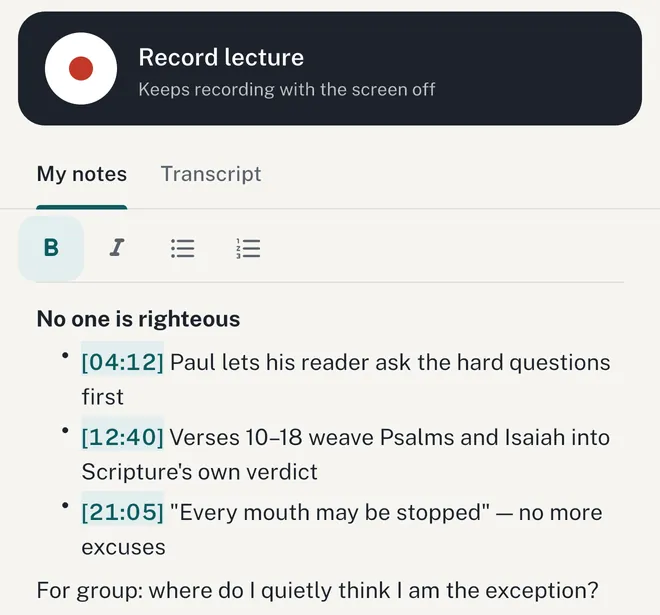
Take notes as you listen
Write in My notes while the recording runs. You can use bold, italics and bulleted or numbered lists.
Add time marks
Tap + Time mark to drop the current recording time into your notes, like [12:40]. Later, tap a time mark to play the recording from that moment. It’s an easy way to find a quote or an illustration again.
Read the transcript
When you stop recording, the lecture is transcribed on your device. Open the Transcript tab to read it, and use search on the home screen to find words in it later.
- Formatted or raw. Switch between the raw transcript and a version cleaned up into readable paragraphs.
- Format transcript. If you only see the raw text, tap Format transcript to tidy it up.
- Long lectures take a while. You’ll see a percentage while it works. You can keep using the app.
About the on-device models
Transcription runs entirely on your device, so the app needs a speech model the first time:
- Transcription model: a one-time download of about 140 MB. The app offers it after your first recording, and you can skip it and download later. English uses an English model; other languages use a multilingual one.
- Formatting model: on Apple devices with Apple Intelligence, formatting uses it with no download. Elsewhere, the app can download a formatting model once. Wi-Fi recommended.
You can download or delete either model anytime under Settings → On-device models.
Recording again
Tap Record again to start over. This replaces the old audio and its transcript, so the app asks you to confirm first.