Writing your first homiletic in the app
Start this week's passage, fill in the six steps beside the text, and print or share it when you're done.
This guide walks through a homiletic from start to finish in the app. If you’re new to the method itself, read What is a homiletic? first.
1. Open this week’s passage
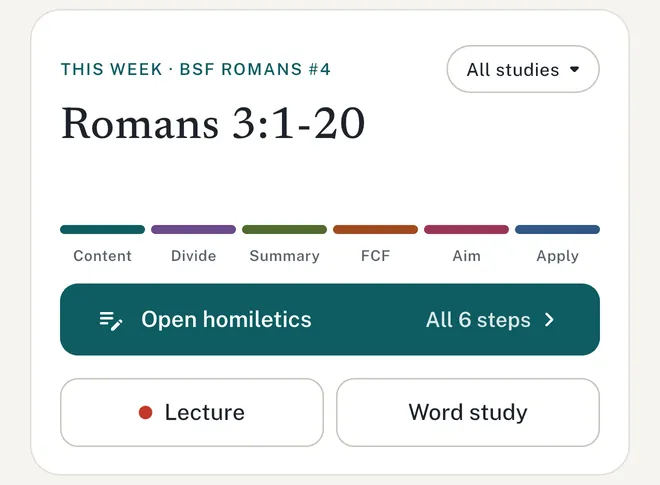
The home screen shows This week — the passage for your study this week, with a small six-colour bar that tracks your progress through the steps.
- Tap All studies to choose your study (for example, BSF Romans) so the right passage shows up each week.
- Tap Start homiletics. Next time it will say Continue homiletics.
Studying something else? Type any passage into Study another passage… at the bottom of the home screen and choose Homiletics.
2. Read with the passage open
The passage appears above your notes on a phone, or beside them on a tablet or computer. Drag the handle between them to give the text or your notes more room.
To read in another translation, tap the translation button (for example, WEB) on the passage. See Reading offline & choosing a Bible translation.
3. Write your content summaries
Here’s the quickest way to write a summary:
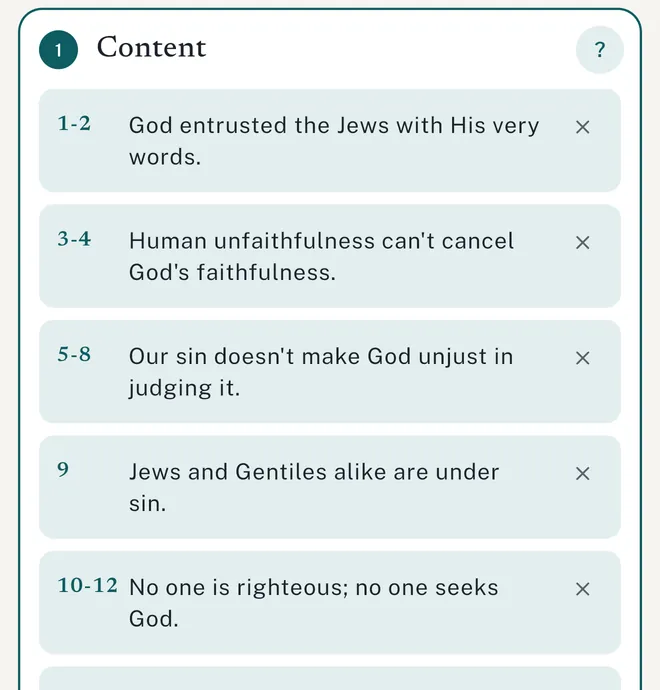
- Tap a verse number in the passage. A new content summary starts at that verse.
- Adjust the verse range if you need to, then write your summary.
- Tap the next verse number where a new thought begins, and repeat.
You can also tap + Add summary at the bottom of the Content step. To remove one, tap its ×.
4. Work through the other steps
Each step is a card. Tap a card to open it and tap again to close it. You can open several steps at once, so it’s easy to look back at your divisions while you write your summary sentence.
- Not sure what a step needs? Tap the ? on its card for a short explanation.
- The placeholder text helps too. The summary sentence reminds you to keep it to 10 words or fewer, and the aim starts you off with “Cause the audience to learn that…”.
- No need to save. Everything you write is saved as you go.
5. Print or share it
When all six steps are filled in, you’ll see All six steps done with buttons to Print it for class or Share it with your group as a PDF.
You can print or share at any point, even before you’re finished, from the ⋮ menu at the top of the screen. More in Printing and sharing.
Finding it again
Your homiletics appear under Continue on the home screen and in See all. The search button on the home screen searches everything you’ve written: summaries, divisions, applications, lecture notes and word studies.